How to make your own macropad!
Hey there! Want to make your own macropad but have no clue where to start? Right this way!
In this guide, we'll go over how to make a simple 3-key macropad as an example, step by step.
For a full submission, you will have to edit it to be your own (add extra keys? a knob? up to you!)
This process is going to be broken into 3 parts, each with its own sub-parts:
- PCB Design
- Drawing the schematic
- Routing the PCB
- Defining the edges
- Case Design
- Creating the bottom
- Creating the plate
- Adding mounting holes
- Firmware Setup
If anything is unclear, 9 times out of 10 you can usually google it; that being said, PLEASE send what you're stuck on in #hackpad!
There's also this giant wall of resources to reference!
First, we're going to start with...
Designing your PCB
For this guide we're going to be using KiCad, which is an open source PCB designer tool.
To start, we're going to have to import the necessary footprints. For this guide, there's a KiCAD library made by Hack Club in the resources section - it's called the care package!
Once that's downloaded, you should end up with a file called kicad_care_package.zip - unzip that and you'll end up with a bunch of files like this:

The .sym files are symbol libraries, while the .pretty folder contains the footprint libraries. You'll have to search up how to install them - I find YouTube works best!
Drawing the schematic
The schematic of a PCB is what defines all the different connections of your PCB, so we're going to start with it first!
First, open KiCad up KiCad and create a new project, then click on the "Schematic Editor" button:

This should open up the schematic editor. Once you're in, press the A key on your keyboard. This should open up a menu where you can add add components. Search for the following and add them:
- MOUDLE-SEEEDUINO-XIAO (This will be our microcontroller! I know the name is funny - this was from the manufacturer)
- SW_Push (this will be our switch! copy this 3 times)
After, your schematic should look something like this:

Next, we need to actually wire these components together! To do so, press the W key on your keyboard. This should make a green wire start to appear. Connect all your switches to pins 11, 10, and 9 of the microcontroller:

(to get the GND symbol, press P and search for it!)
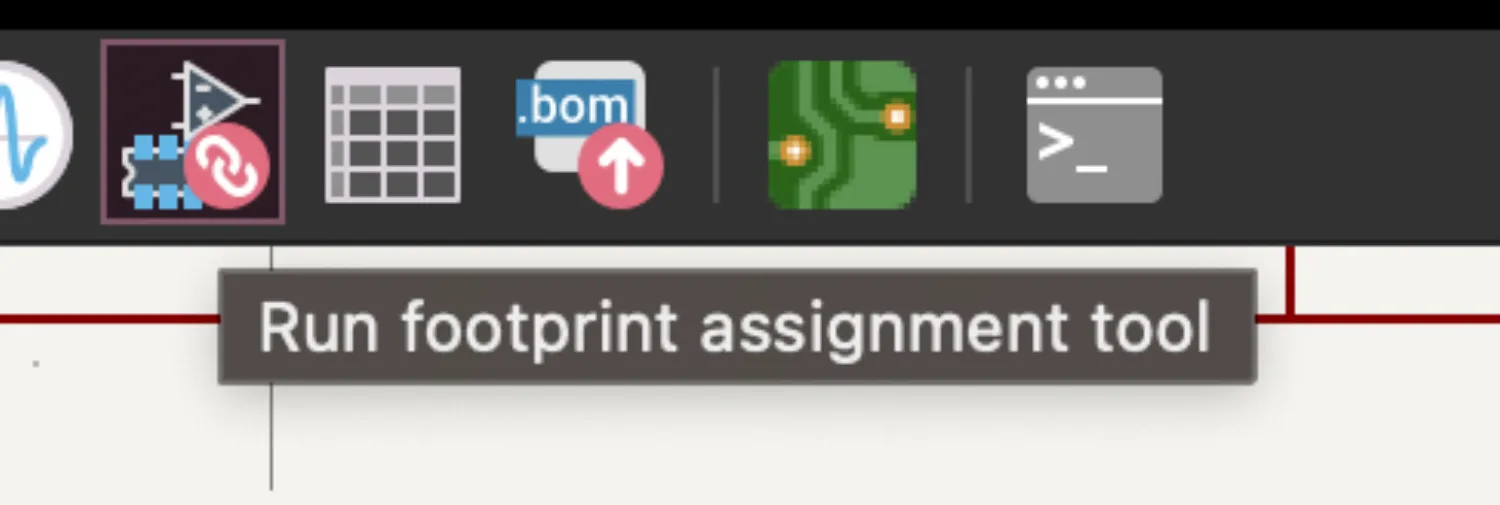
Once all the components are connected, we can start assigning footprints to the symbols we have here. Footprints are what gets physically drawn on the PCB. To do this, click the "run footprint assignment tool" in the top right.
This should open up a window where you can assign different footprints to your components! Assign them based on the image below:

Once you're done, you can hit apply & save schematic. We're now officially done with the schematic! Onto making the physical PCB itself:
Route the PCB
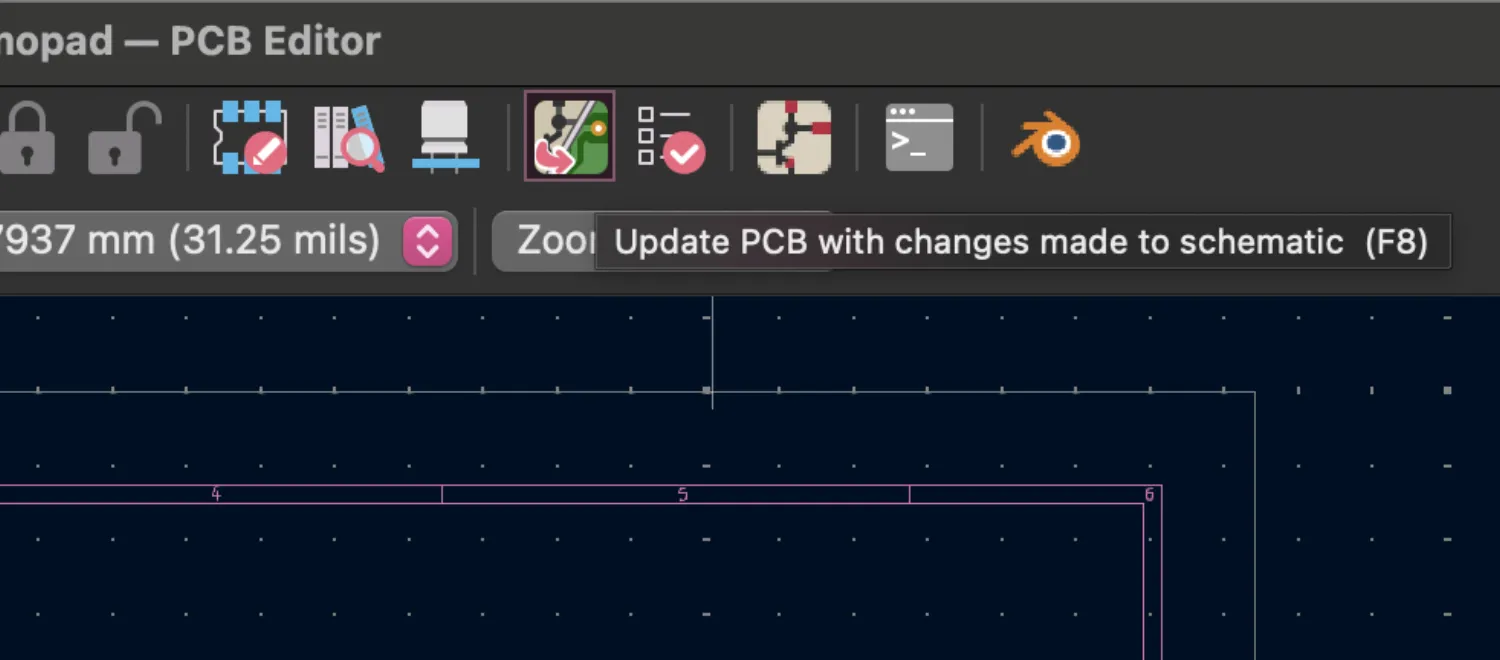
Go back to KiCad project page, and hit the "PCB editor" button. Once the PCB editor is open, hit the "Update PCB from schematic" button in the top right:
It should have dumped all the components on the page. Right click the XIAO, and click "flip side". This should flip the footprint to the other side - this means when soldering, we will be assembling the macropad on the bottom
After that, arrange all the components like so:
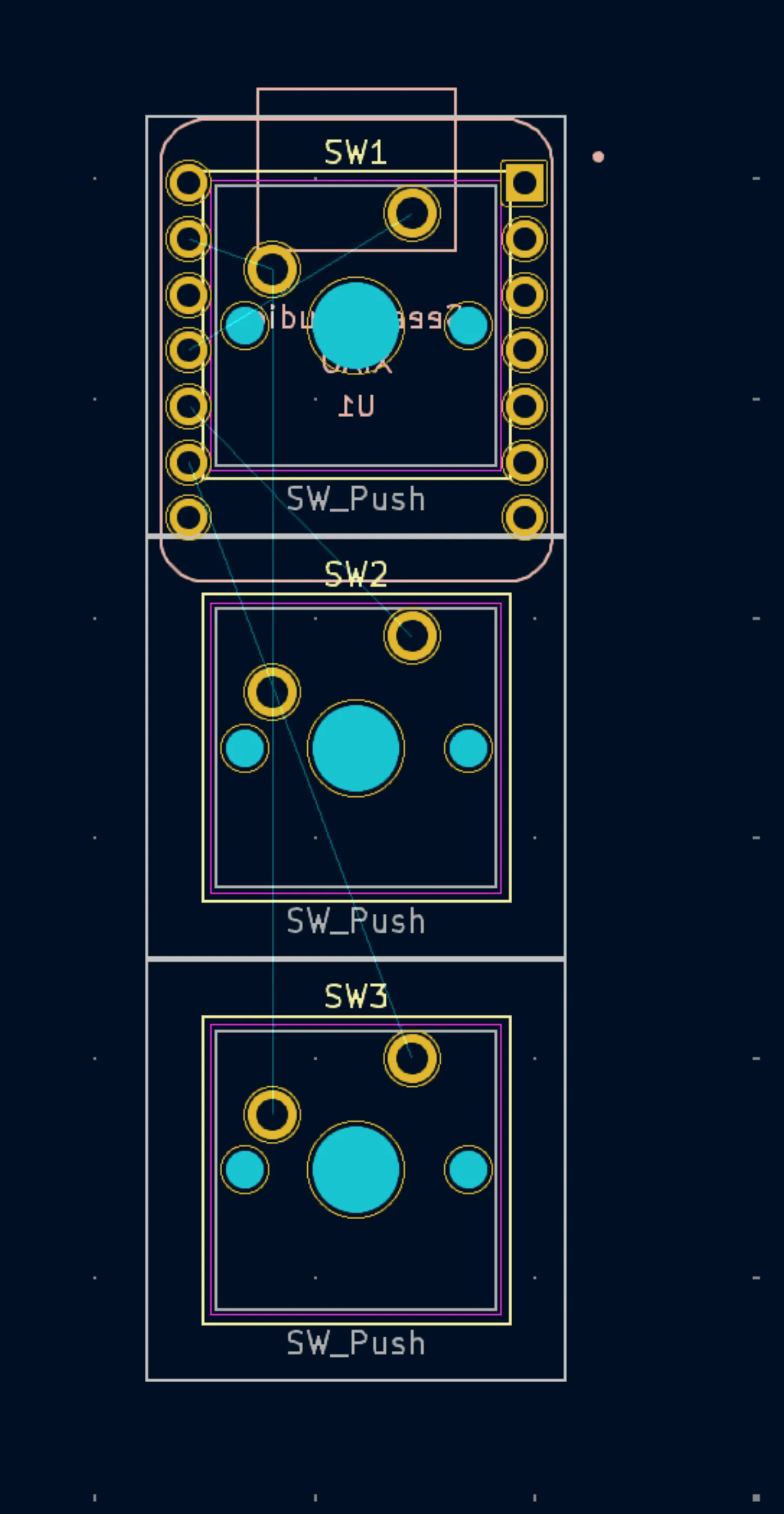
Now it's time to route the PCB! Hit X on your keyboard and hit any golden pad with a blue line. It should dim the entire screen and show you where to go. Route the PCB like so:
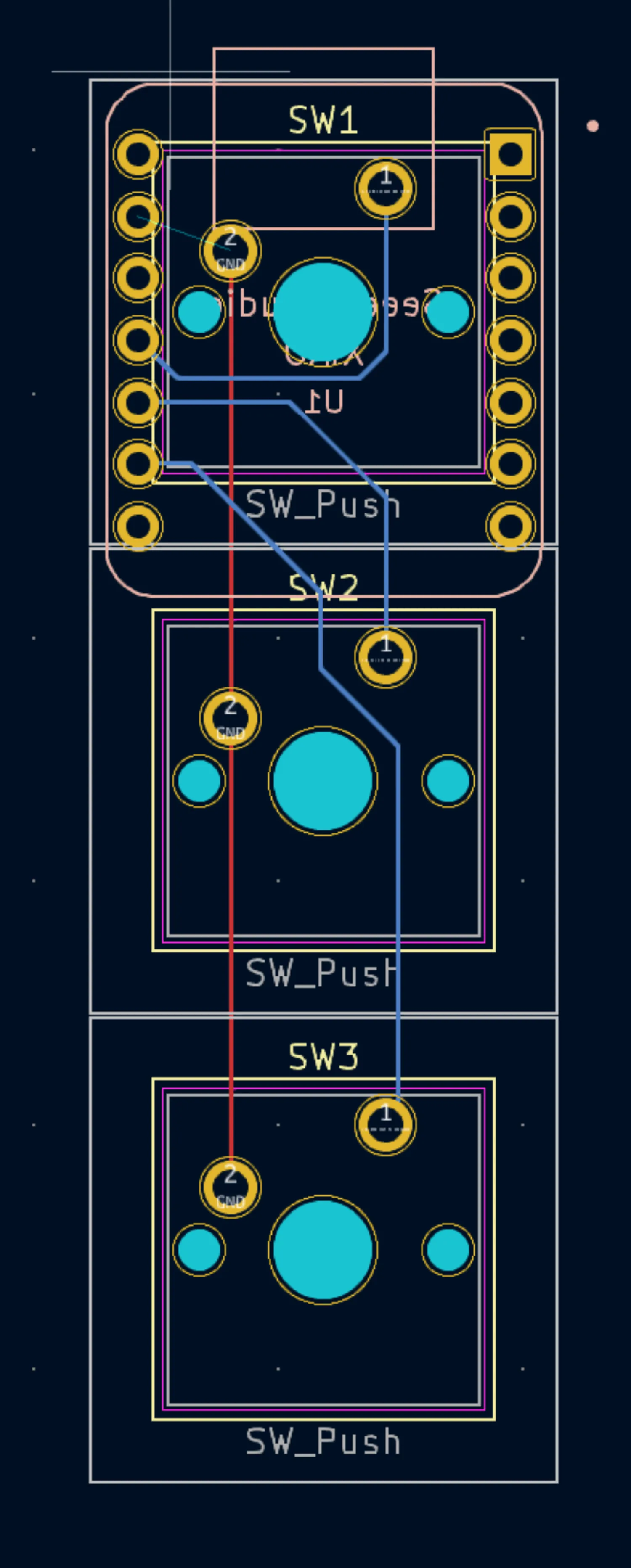
(to get the blue lines, change the layer on the right from F.cu to B.cu)
Our PCB is almost done, but we need one final step; we need to actually define the size of the board! Head on over to Edge.cuts, and draw a rectangle outline our board:
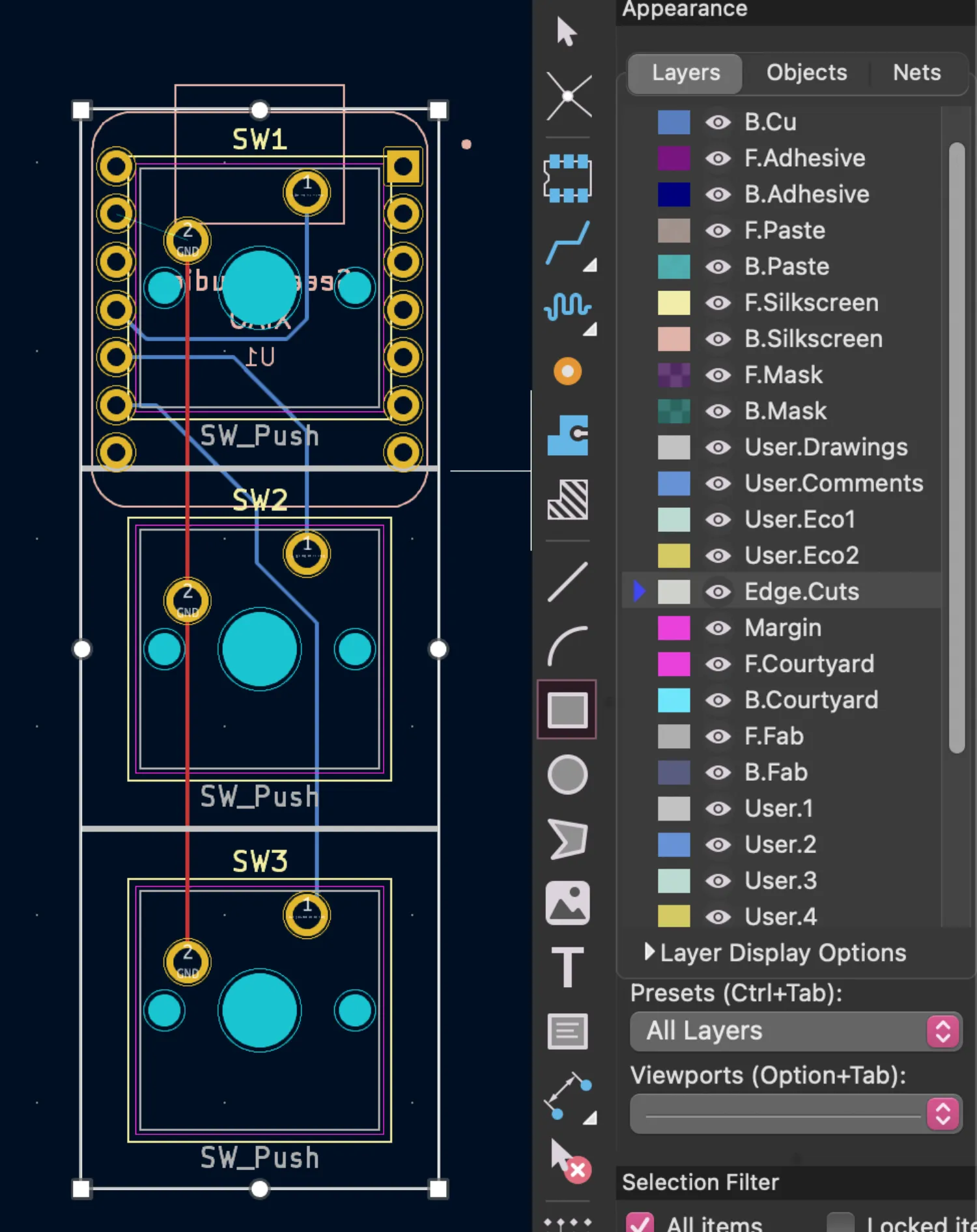
You can measure how long your pcb ends up being by using the "measure" tool!
(PS: You can hit the 3D viewer button in the top right for a cool view of your pcb!)
If everything was done correctly, you are now officially done the PCB! Onto case design:
Create your case
This guide uses Fusion360 for designing the case. You can use other software, but it may be harder to follow along!
Before we start designing, it's useful to familiarize yourself with the different types of keyboard mounts.
For this guide, we'll be using a sandwich-mount style.
To start, make a new sketch. Draw a rectangle with the same dimensions as our PCB from earlier, plus 0.4mm on each side to account for printing tolerances:
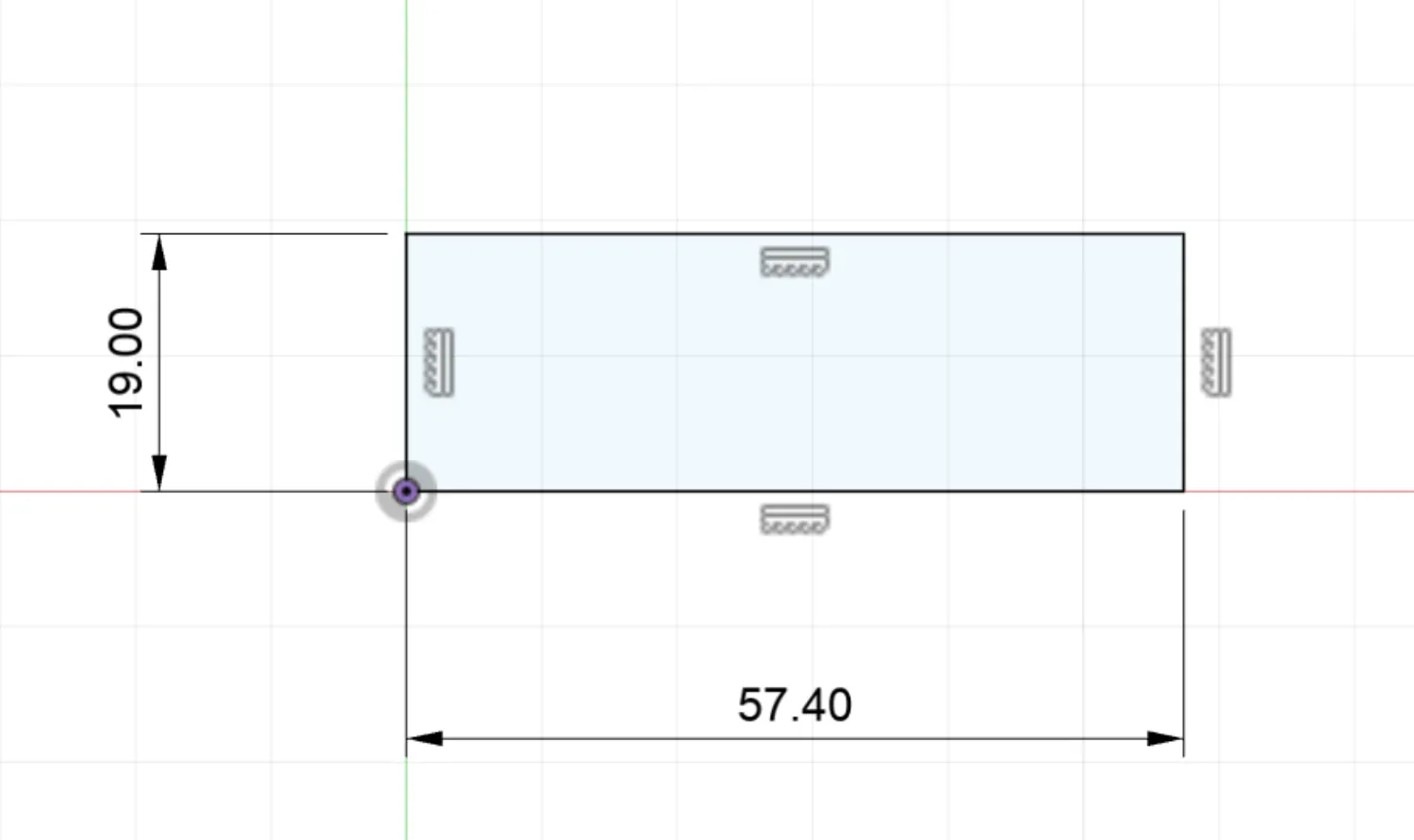
(I didn't quite do that here - it's supposed to be 19.4mm and 57.8mm!)
Next, draw a larger rectangle with a 10mm margin:
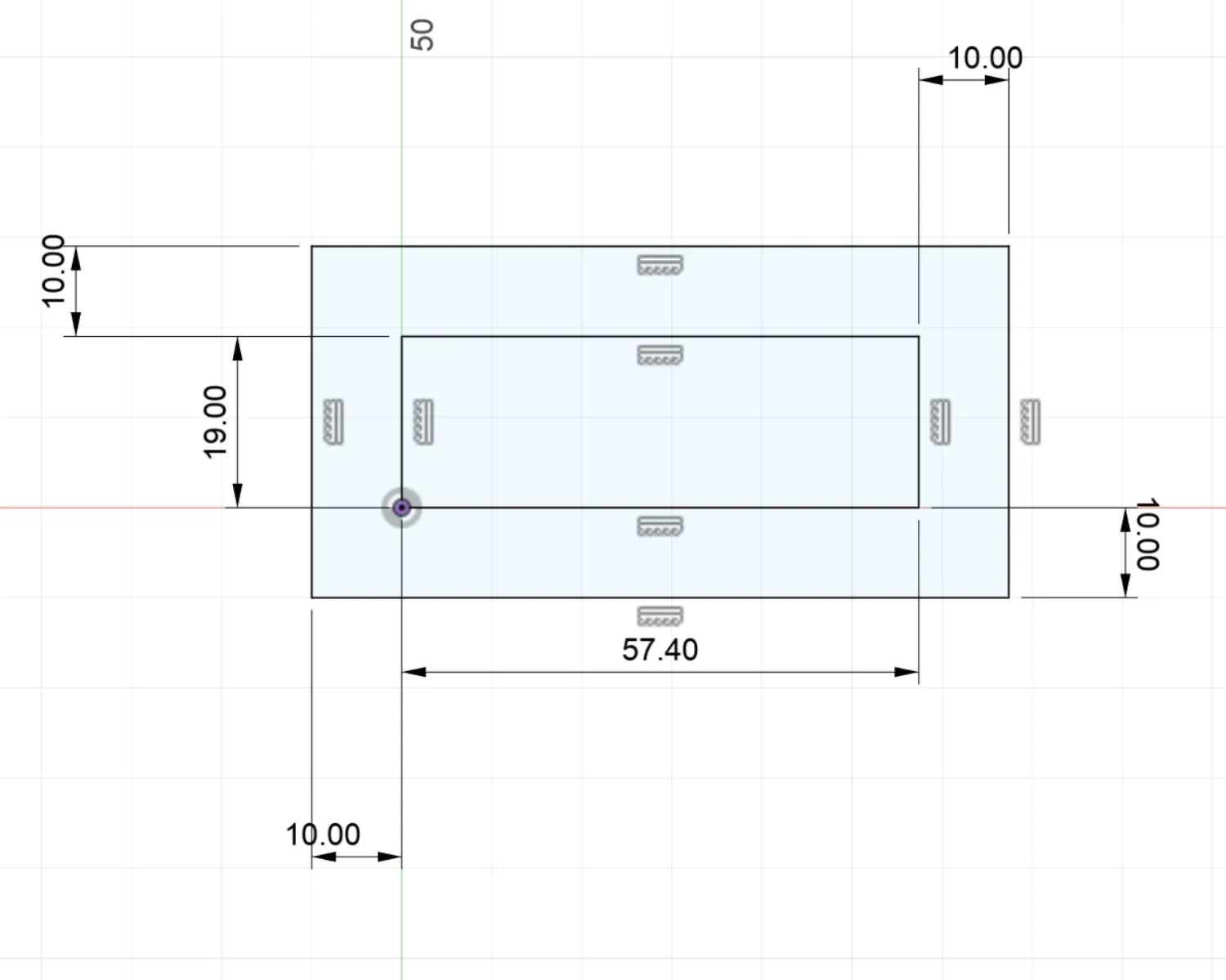
Next, we're going to draw the accomodating holes for it:
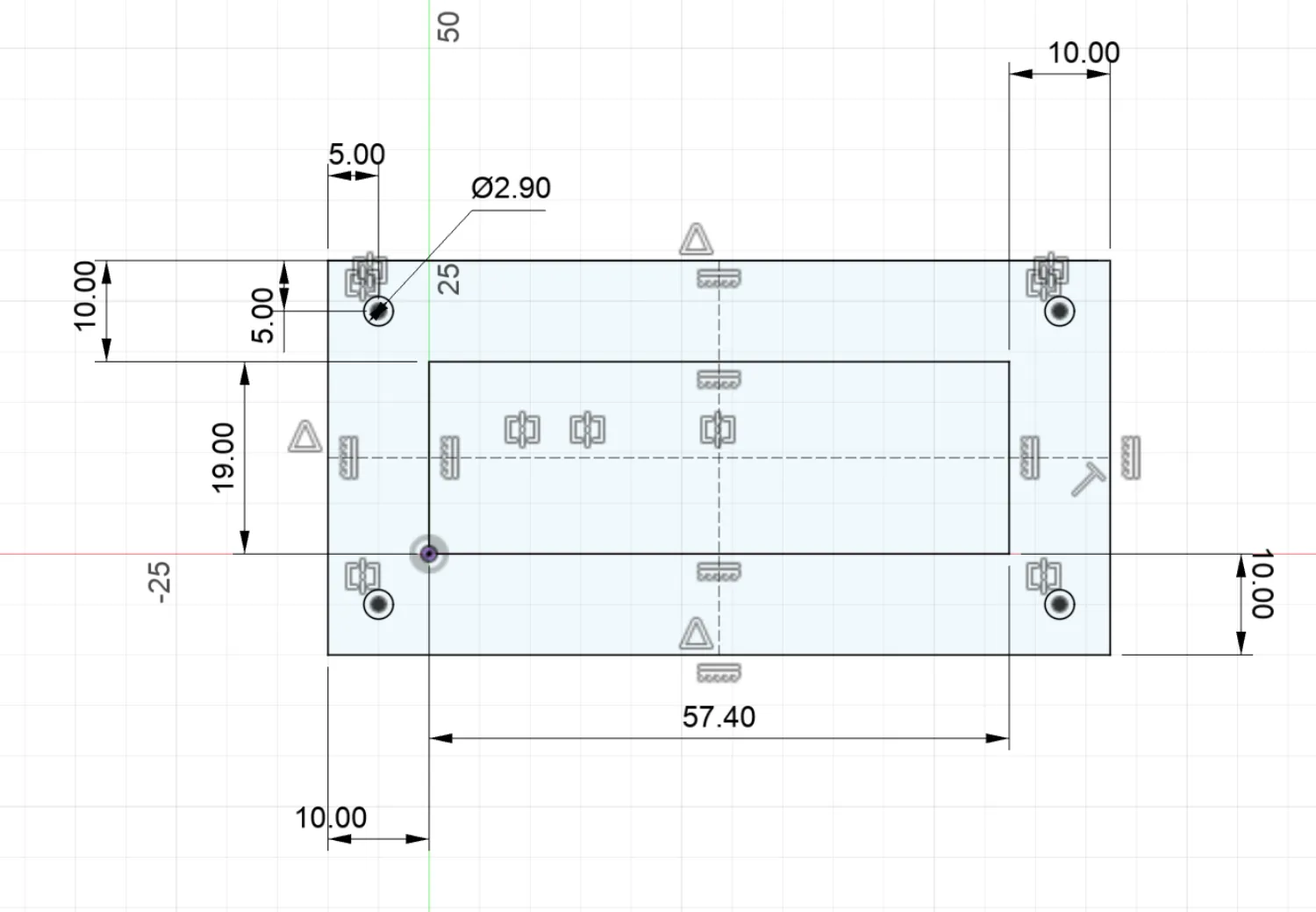
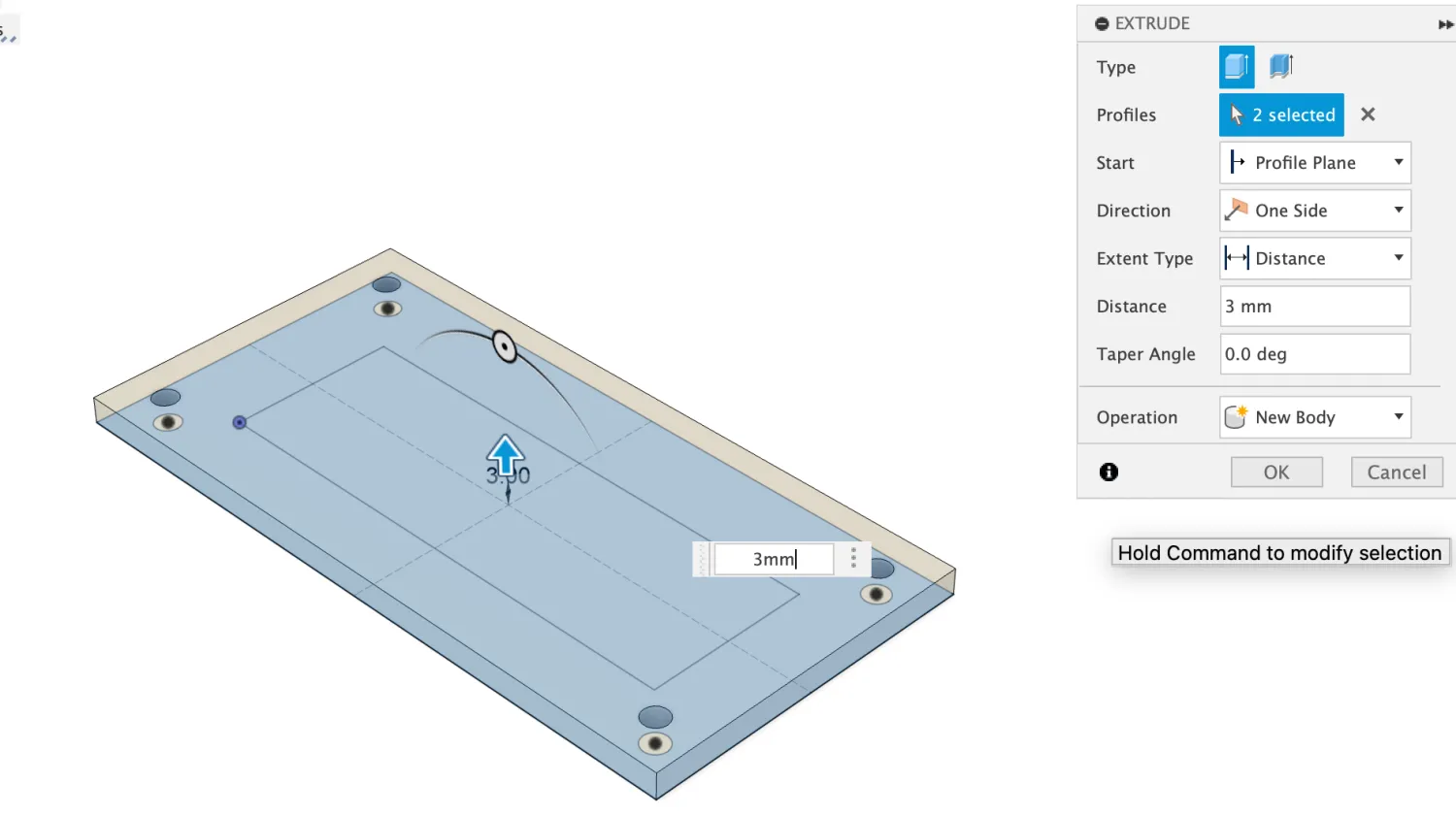
Extrude the base of the case by 3mm:
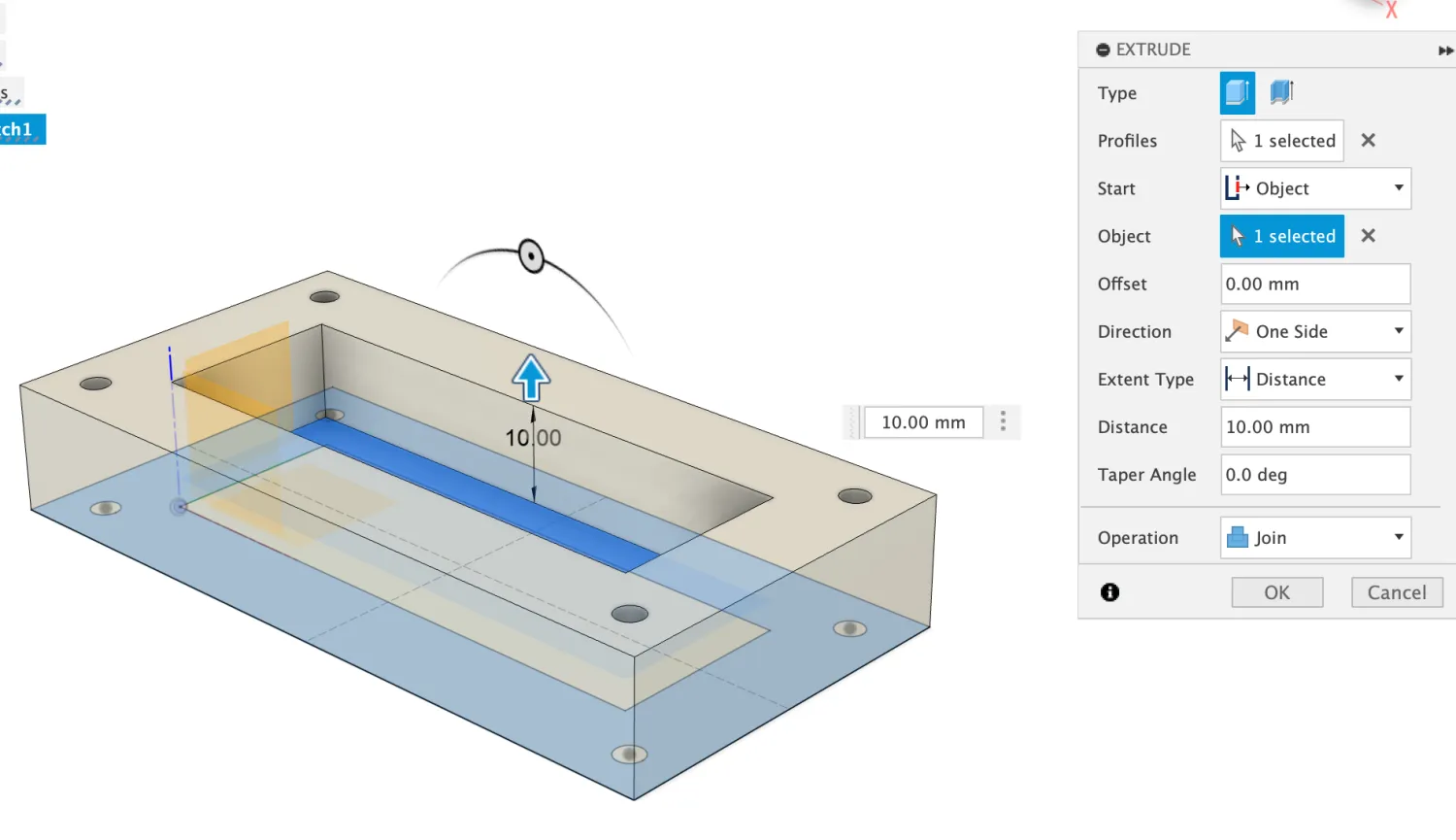
Extrude the sides by 10mm (it should be 13mm tall in total!):
That's the bottom half of the plate done. Next, we're going to make the plate. Head on over to ai03's plate generator
and paste in the following data:
["","",""]
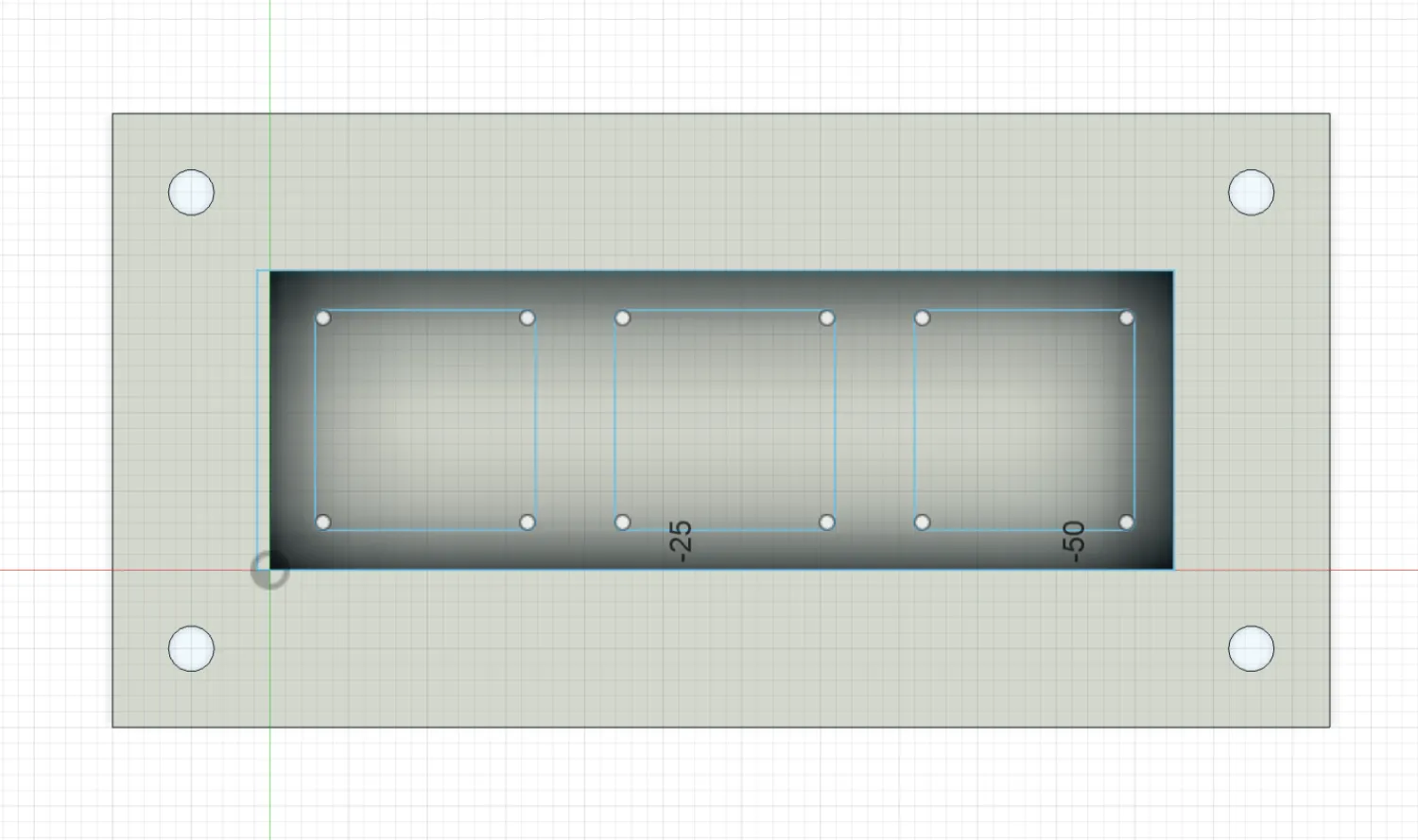
That should generate a plate. Hit download DXF, and then import that into Fusion 360 - make sure that the plate is centered!
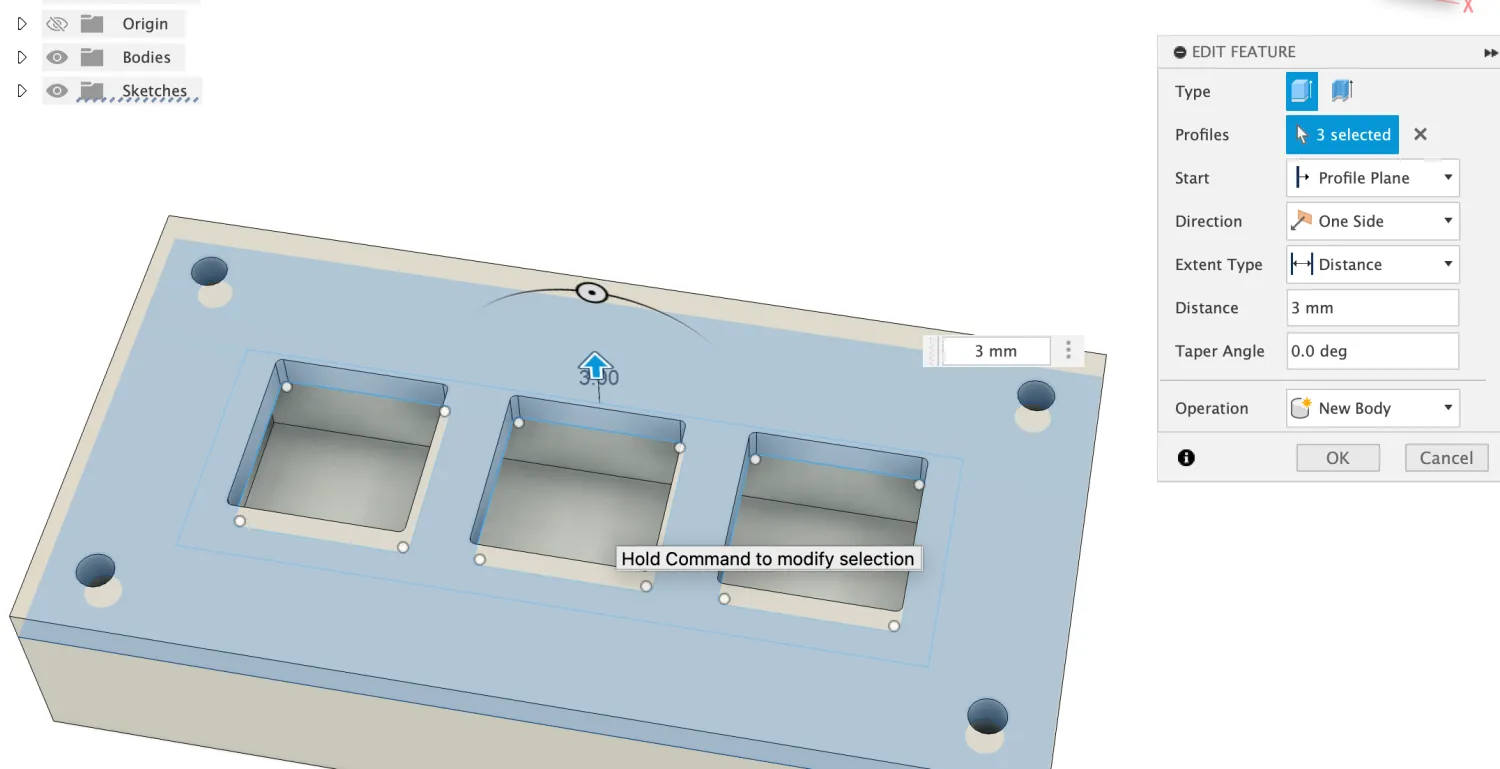
Extrude the plate by 3mm:
Lastly, add a USB cutout:
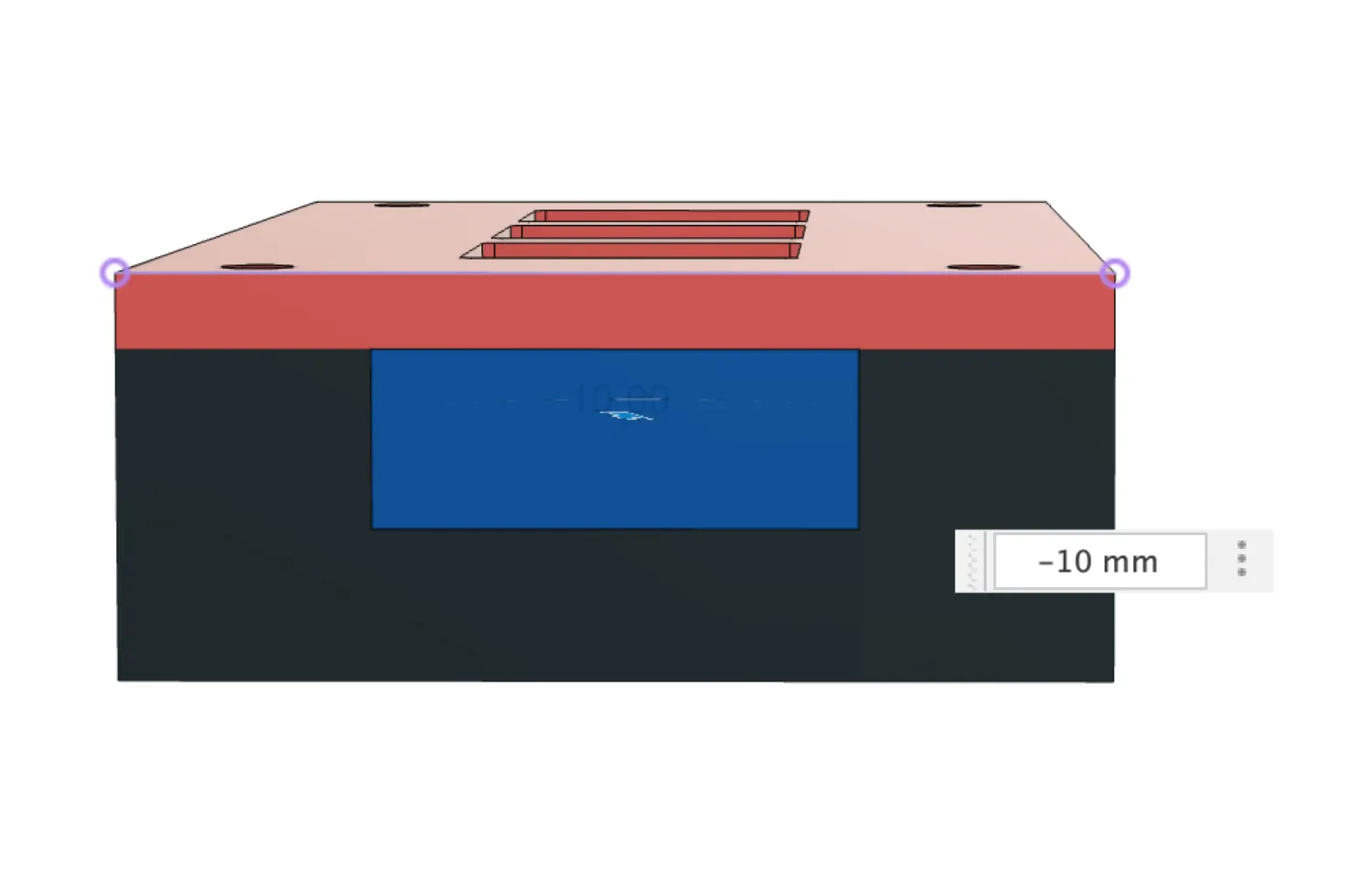
Congrats!! You are now done your case
Build your firmware
This tutorial uses the QMK firmware project as firmware! You can find out how to port your keyboard here: \
QMK Porting Guide
Next steps
We just made a pretty cool macropad, but obviously there's a lot of cooler stuff out there - that's up to you to figure out!
The biggest tip I have for that is to simply look at other PCB designs and reverse engineer it from there. For example, my own macropad design is actually in the repository
here! It has:
- 2x neopixel/SK6812 MINI-E LEDs
- 1 0.91 128x32 OLED
- 1 rotary encoder/knob
- 4 switches (5 if you include the rotary encoder!) - this is done in a matrix, so it's a good point to check!
Everything is fully open source, so you can try and reverse engineer from there. This process applies to practically everything else